Help: make a colouring book from your photos
Version 27 Sep 2026 · ed4bc4e
Saves this page as a PDF from your browser.
Color Me In turns your photos into a print-ready colouring book PDF. Digital books start from about $5.99 for 10 pages. Print at home or at a local shop such as Officeworks. Printed books posted to you are on the waitlist for now.
Follow this once and you can upload, pay, download, and print without guessing.
1. What you get
A colouring book here means a print-ready PDF built from your photos: a cover, one colouring page per photo, and filler pages when needed so the book feels complete.
- You keep the file and can print it as many times as you like at home (personal use).
- Payment is one-time. No subscription.
- This is not a free unlimited photo converter, and not a theme pack you download without uploading photos.
Want a quiet first look before you order a full book? The optional free trial gives you a watermarked preview of one photo. That free path is separate from Create’s paid trial (Try 2 pages for $0.99), which is not free.
2. Before you start (photos)
Create needs at least 10 clear photos. You can upload up to 24. Each photo becomes its own colouring page.
How many to pick
- Minimum: 10 (Create will not let you continue under 10).
- Sweet spot for most gifts: 10-16 clear photos of the same person, pet, or occasion.
- More photos: up to 24 if you want a thicker book and fewer fillers.
Fridge test
If you would stick the photo on the fridge, it is usually clear enough. If you would skip it for the fridge, skip it for the book.
Good examples (use these)
- One face or pet filling most of the frame, looking toward the camera
- Birthday cake close-up with the child clearly lit
- Grandparent and grandchild side by side, both faces readable
- Dog or cat sitting still outdoors in daylight
- A single clear hero (person or pet) with a simple background
Skip examples (swap these out)
- Group shot where every face is a tiny speck
- Motion blur from running or a shaky phone
- Heavy filters, strong Instagram looks, or neon colour casts
- Very dark indoor shots with no clear subject
- Screenshots of screens, memes, or text-heavy graphics (not photo heroes)
Pets, kids, family, birthdays, and grandparents all use the same photo rules. Clear and close beats busy and far away. Mix of ages and pets is fine in one book as long as each page has one clear hero.
3. Try one photo free (optional)
If you want a watermarked preview of one photo before you make a full book, open Free trial.
What happens:
- Enter your email and continue with the code we send (Continue with Email on that page).
- Upload one photo.
- Get a watermarked colouring-page preview.
Free previews are limited each day. On that page, tap Try one photo free when you are ready.
When you are ready for a full book, come back here and follow Make a book, or go straight to Create your book.
Not the same as: Create’s paid trial, Try 2 pages for $0.99. That path is paid and is not called free. Free language belongs only on /free-trial.
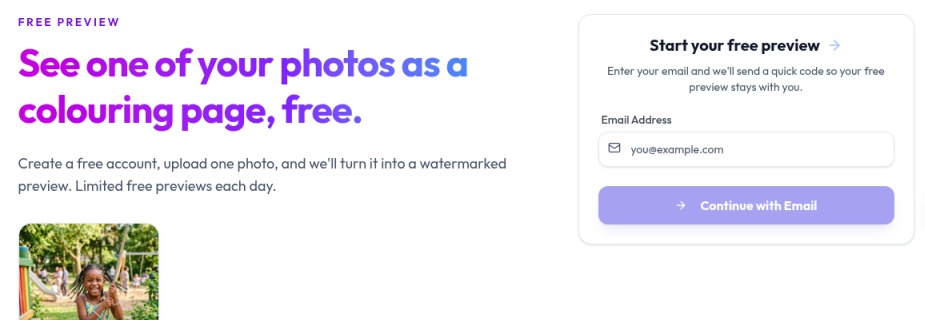
/free-trial, enter your email and tap Continue with Email. Free language lives only here (Try one photo free / free preview), not on Create’s paid Try 2 pages for $0.99.4. Make a book
This is the main path for a full digital colouring book. Live Create order: Select Photos → Continue to Magic → styles (Continue to Book Setup) → Design Your Book (cover + title) → Continue → pay → PDF / Color In.
Step by step
1. Open Create
Go to Create (or any money-page button that lands you there).
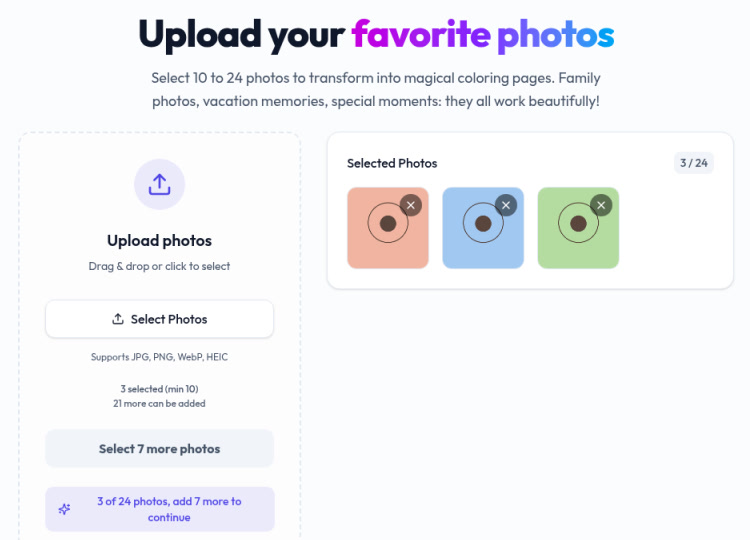
2. Select Photos
Open Select Photos and choose at least 10 photos.
- Blocked (under 10): the primary control says Select N more photos (for example Select 10 more photos when you have none, or Select 3 more photos when you have 7). It stays disabled / not proceed-looking until you hit 10.
- Ready (10 or more): the counter shows you are at or above the minimum, and you can move on. Finish any rights / confirm step if the screen asks for it.
- Tip: use the fridge test from Before you start. Swap weak shots now; it is harder after pay.
3. Continue to Magic
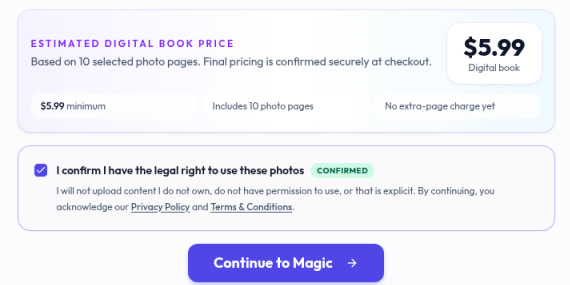
When you have enough photos and any rights / confirm step is done, tap Continue to Magic. This is the go-ahead into style and book setup. If the button still looks stuck, you are almost always still under 10 photos.
4. Styles, then Continue to Book Setup
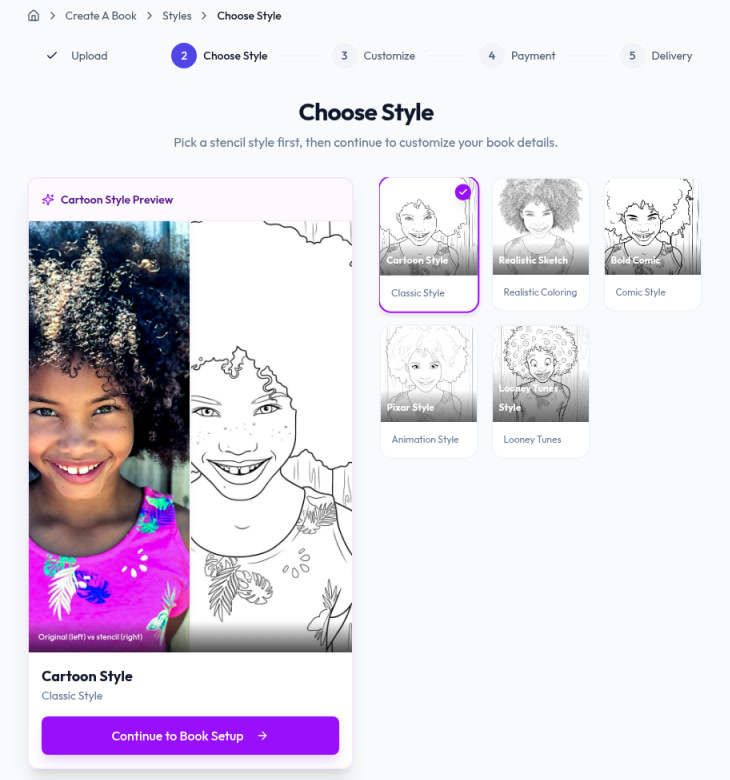
On the styles step, pick the look that fits the gift, then tap Continue to Book Setup. This screen is about how the colouring pages feel, not yet the front cover.
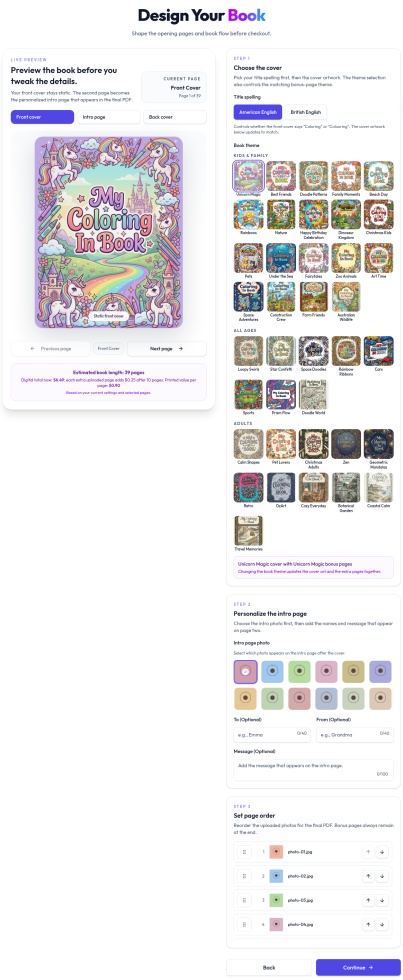
5. Design Your Book
This is where you finish the front of the book:
- Pick your cover (the theme frame on the front: for example Christmas Kids, Pets, or another Active cover in the picker).
- Set the title and any other details the screen shows (name / “belongs to” style fields when offered).
- Check the preview looks like the gift you meant.
- When you are happy, tap Continue.
6. Pay
Pay once (one-time; no subscription). Digital from about $5.99 for 10 pages. You may also see Create’s paid trial Try 2 pages for $0.99; that is not free.

7. Download and colour
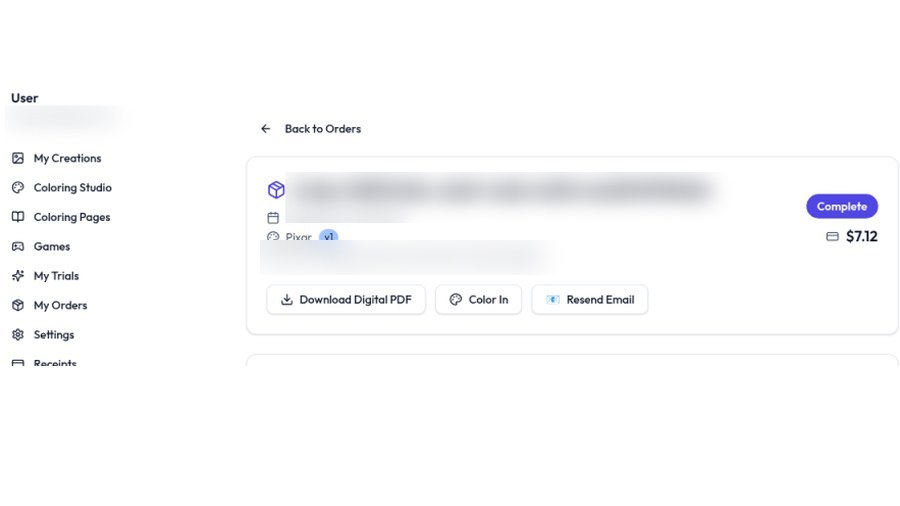
When the book is ready, download the PDF. Your order also includes access to Color In so you can colour digitally if you like. Check the success / order screen and the email we send when the file is ready.
On the order page, the download control reads Download Digital PDF.
8. Print
Print on A4, single-sided, black and white or greyscale (see Printing tips).
5. What’s inside the PDF
Think of the PDF as a short book you can print, page by page:
- Cover: your chosen cover frame / theme plus a photo hero on the front.
- Optional “belongs to” page: when the product still offers it, and you added a name on Design Your Book.
- Your colouring pages: one colouring page per uploaded photo, one clear hero per page, in the order you set up.
- Filler pages: only when needed to round out the book so it feels complete. Fillers never replace your photos.
- Back / brand page: closing page with Color Me In branding.
How fillers relate to your photo count
- Closer to 10 photos → more fillers to keep the book feeling full.
- Closer to 24 photos → fewer fillers; more of the book is your photos.
- Create still needs at least 10 photos either way.
You keep the PDF for personal print-at-home use. Each new order is a separate PDF if you make another book later.
6. Printing tips
Paper and size
- Print on A4.
- Use single-sided pages so marker or crayon colour does not bleed through to the next page.
- Print at actual size (no “fit to page” shrink if you can avoid it).
- Greyscale or black and white is fine; you do not need colour ink for the line art.
Where to print
- Home printer, or take the PDF to Officeworks or another local print shop.
- Ask the shop for A4, single-sided, greyscale / black and white if they set the job for you.
Spare copy
- Print a spare of favourite pages (or the whole book) if the household will fight over the same page.
Posted print (not live yet)
- Printed books mailed to you are on the waitlist only for now.
- If you see Join the print waitlist, that is the right next step for posted print.
- Digital PDF and print-at-home are available now.
7. Common snags
Stuck under 10 photos (Continue / next looks blocked)
Create needs at least 10 photos. Look for Select N more photos on Select Photos or the sticky create control. Add clearer photos until N hits zero / you reach 10. The button stays disabled or not proceed-looking until then. See Make a book step 2.
Pages look soft, muddy, or empty
Blurry, dark, or tiny-subject photos make weak colouring pages. Go back to Select Photos (or start Create again before pay) and swap for fridge-test shots with one clear hero. See Before you start.
Where is my PDF?
After pay:
- Use the download path on the order / success screen.
- Open Color In if you want to colour on screen.
- Check the email we send when the book is ready (spam / promotions folders too).
- Still stuck? Write to support@color-me-in.app with the email you used at checkout.
The download control on the order reads Download Digital PDF. Resend Email sends the book again when that button is on the page.
I thought Create was free / mixed up free vs $0.99
- Free = only on Free trial: one watermarked photo, Try one photo free, Continue with Email.
- Create’s paid trial = Try 2 pages for $0.99 (not free).
- Full book = from about $5.99 for 10 pages, one-time pay.
Want another book?
Start Create again. Each order is its own PDF. Covers and photos can be different each time.
Cover or title looks wrong after pay
Cover and title are set on Design Your Book before you tap Continue into pay. If you already paid and something is wrong, email support@color-me-in.app with your order email; do not assume a self-serve edit after pay unless the order screen shows one.
8. Gift ideas
Short reads and hubs (one line each):
- Christmas gift colouring book · seasonal gift path
- Pet colouring book · dogs, cats, and favourite animals
- Grandparents colouring book · Nan, Pop, and grandkid photos
- Birthday colouring book · a personalised birthday keep-forever
- Custom colouring book · product buy path
- Colouring book from photos · how photo-to-book works
More how-tos live under /blog when you want a longer read. Soft only; this guide stays the how-to for making the book.
9. Need more help?
Email support@color-me-in.app. We typically reply within a day.
You can also skim the FAQ for printing, photo tips, and privacy basics.
Ready when your photos are
Create your book · Prefer a quiet first look: Free trial